Install Local Crew
Keep quotes, leads, messages and your wallet one tap away. Choose your device for the right instructions.
Choose your device
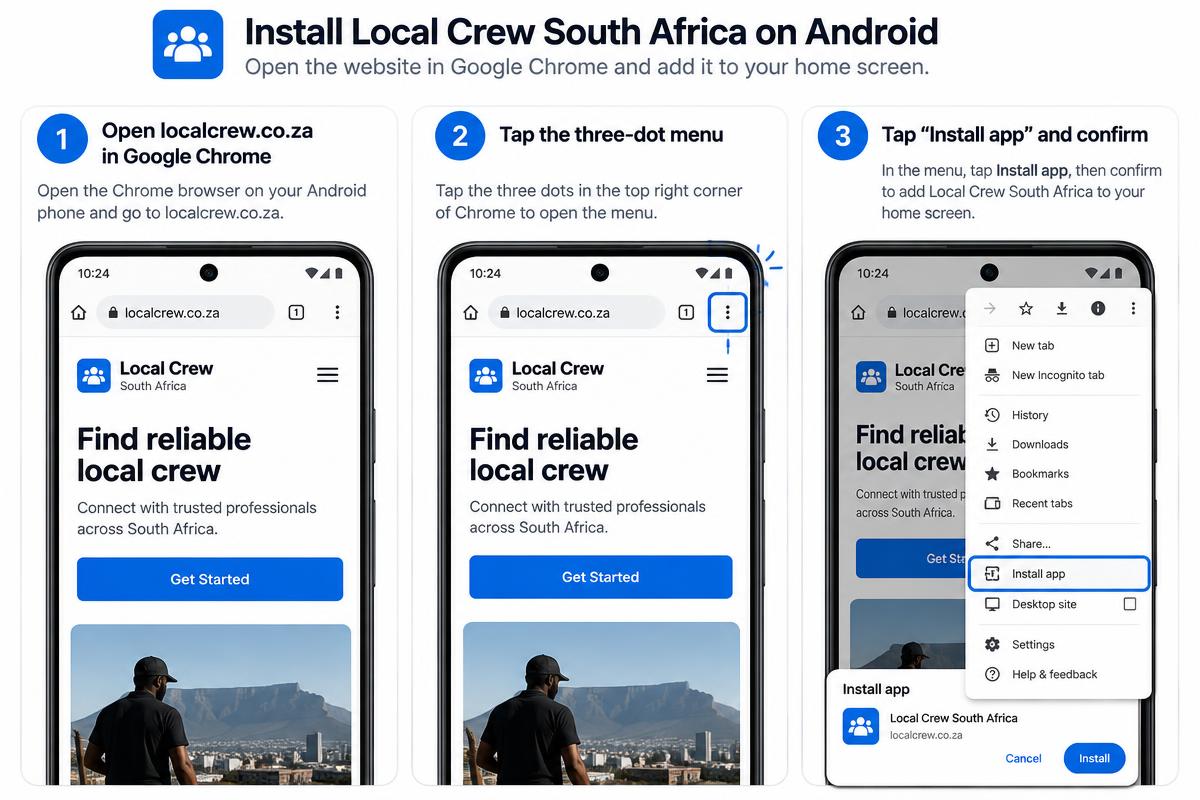
Install with Google Chrome
Android
- 1Open localcrew.co.za in Google Chrome.
- 2Tap the three dot menu at the top right of Chrome.
- 3Choose Install app, then tap Install to confirm.
- 4Open Local Crew from the new icon on your Home screen.
Install with Safari
Apple
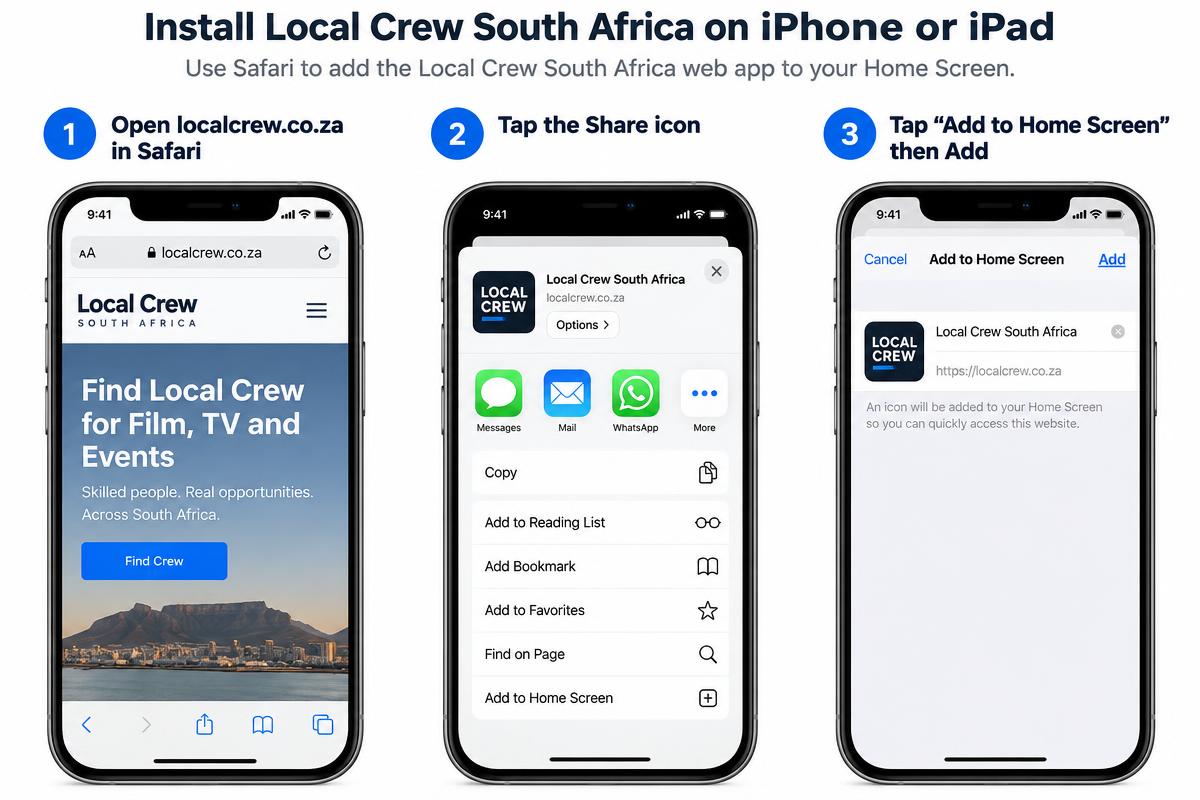
- 1Open localcrew.co.za in Safari.
- 2Tap the Share button in the Safari toolbar.
- 3Scroll through the actions and tap Add to Home Screen.
- 4Confirm the name, then tap Add in the top right corner.
Install with Safari 17 or newer
MacBook
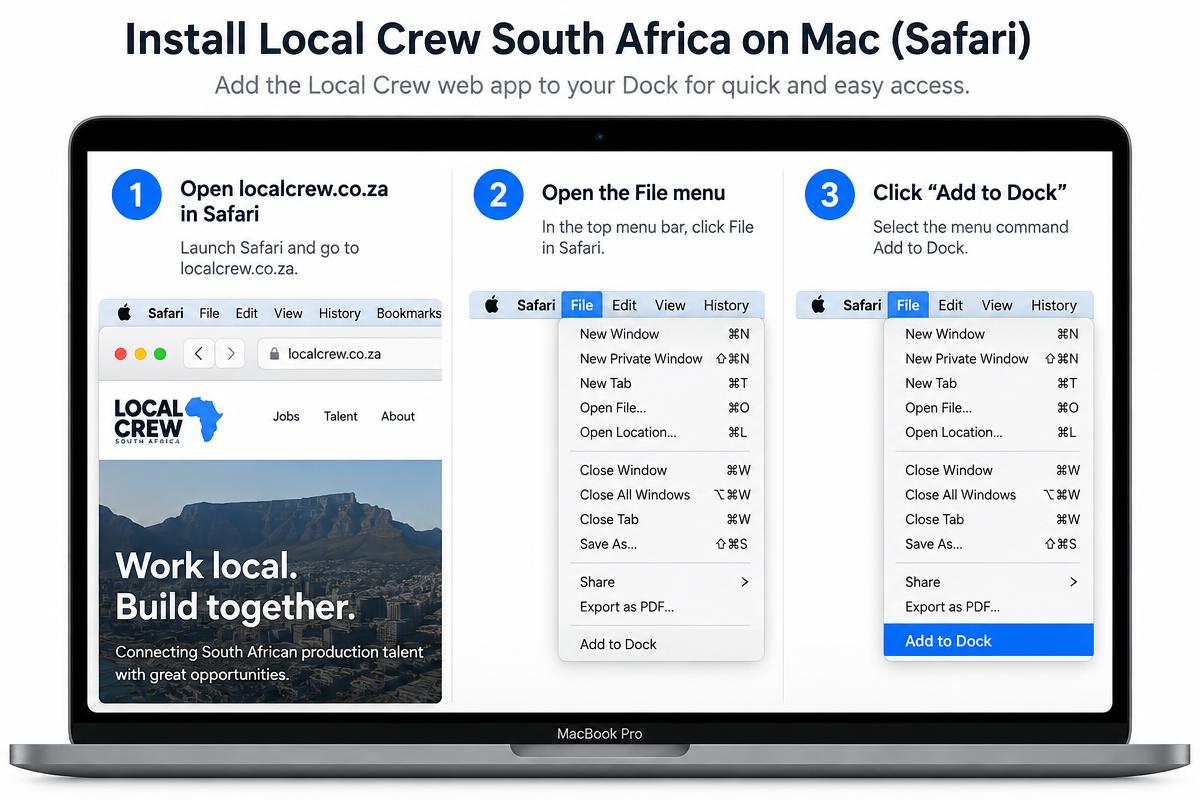
- 1Open localcrew.co.za in Safari.
- 2Choose File from the menu bar at the top of your screen.
- 3Select Add to Dock.
- 4Confirm the app name and click Add. Local Crew will appear in your Dock and Applications folder.
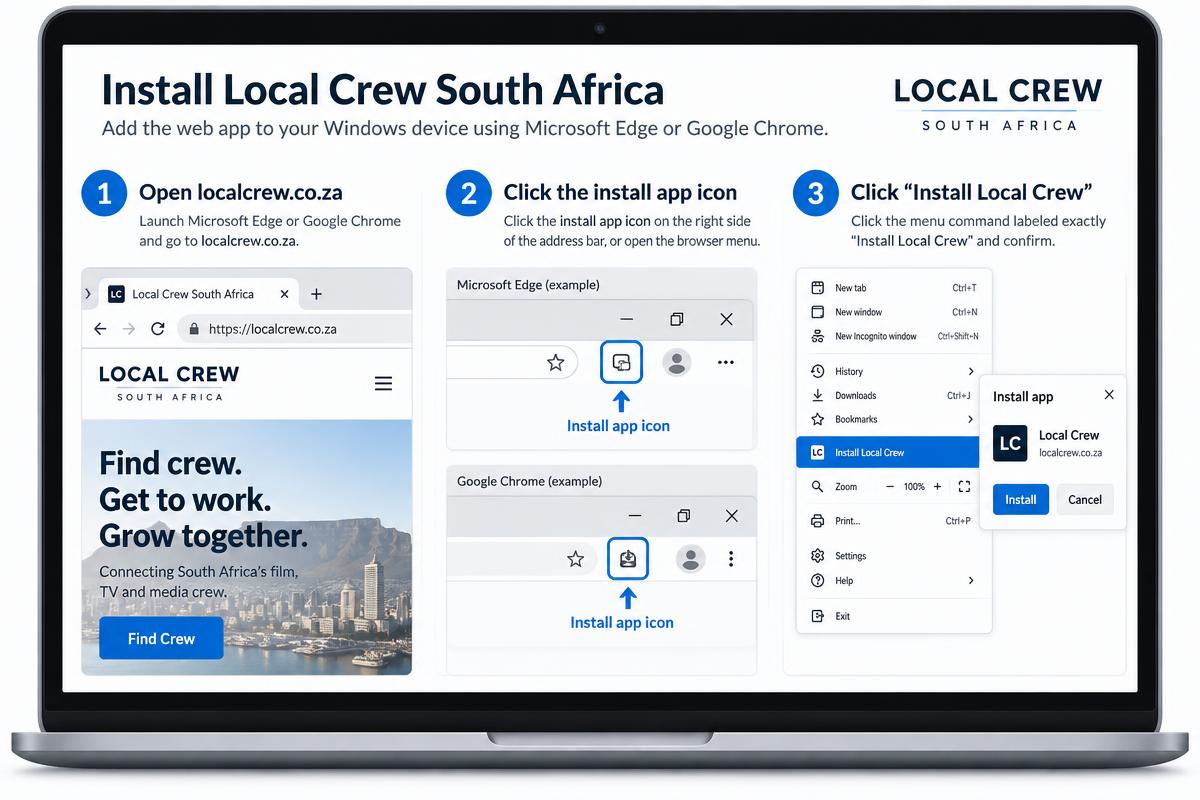
Install with Microsoft Edge or Google Chrome
Windows
- 1Open localcrew.co.za in Microsoft Edge or Google Chrome.
- 2Click the install icon on the right side of the address bar. If it is not visible, open the browser menu and choose Apps or Install Local Crew.
- 3Click Install to confirm.
- 4Choose whether to pin Local Crew to your taskbar or Start menu for quick access.